
How to Choose Photos for an AI Rap Video
Choose clear references for the two-person Rap video mode, prepare any crops before uploading, and check both faces in a shared photo.
This guide covers photos for the two-person Rap video mode. Effects can have different photo requirements; follow the upload labels for the effect you select.
Choose the photo in which the face is easiest to see, even if it is not your favorite picture. A stylish silhouette or a crowded group shot can leave very little visible detail for a facial animation.
Start with the face, not the background
Look for a sharp, roughly front-facing portrait with even light across the face. Check the mouth as well as the eyes: a hand, scarf or cup can hide the part of the face that needs to move during a performance.
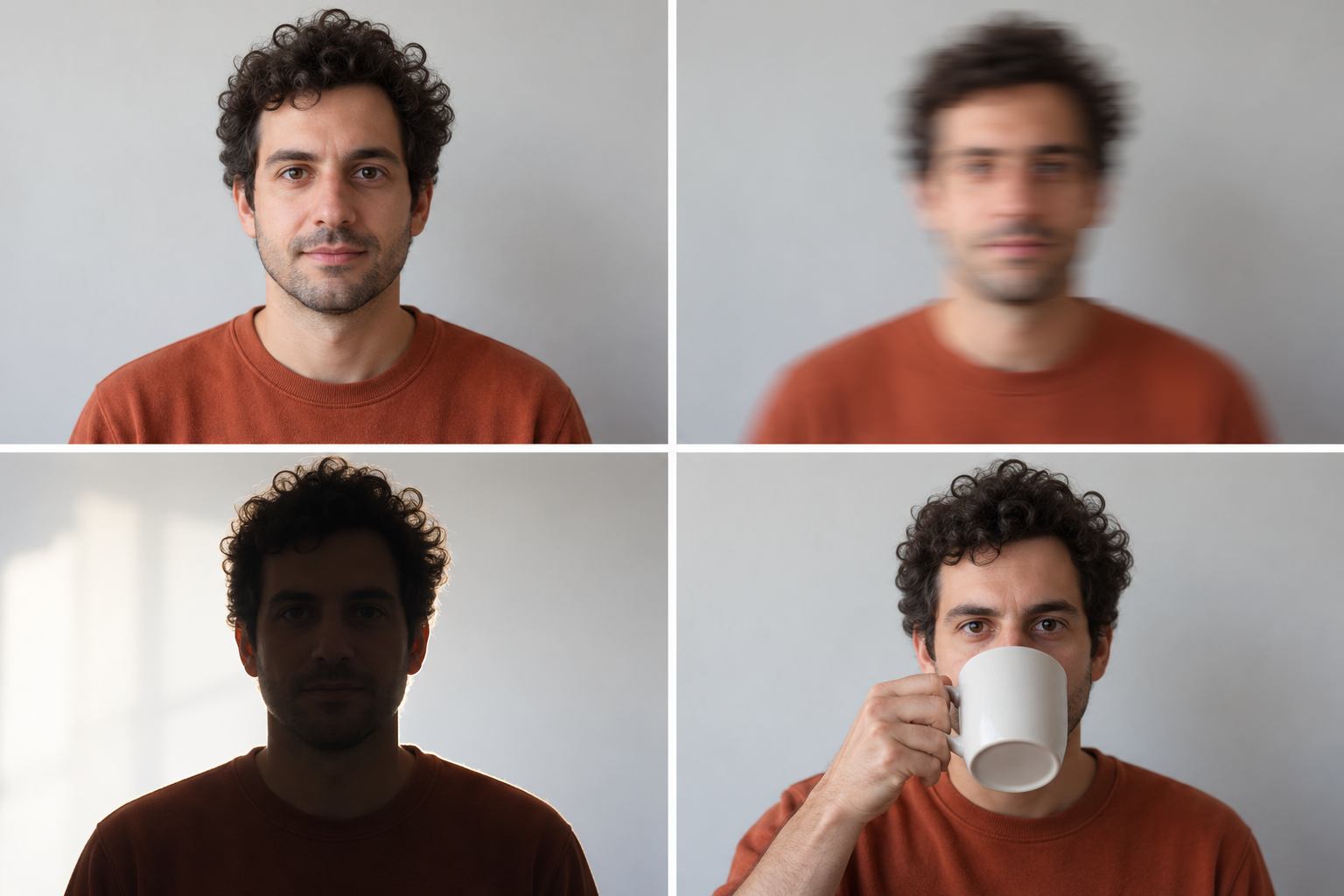
AI-generated photo-selection illustration, not an AI RAP VIDEO result. Clockwise from top left: clear face, blur, covered mouth, strong backlighting.
Open the original image at a comfortable viewing size. If the eyes and mouth already look soft, enlarging the file will not reveal the missing detail. Look for an earlier, sharper photo rather than repeatedly saving the same small copy.
Two portraits or one shared photo?
Use Two photos when you have a clear portrait of each person. The photos do not have to have been taken together. Each upload box is for one person, so avoid using a whole group picture in one box.
Use One photo of both when both people are easy to identify in the same image. Check each face separately. One sharp foreground face does not make up for a second person who is tiny, blurred or half hidden in the background.
If your only shared photo has that problem, use separate portraits instead. This choice is about the reference material you have, not a promise that one mode produces better videos.
Before you upload
- Check the original. A downloaded thumbnail or repeatedly forwarded copy may have less detail than the photo in your camera roll.
- Keep both faces in view. If you need to crop a shared picture, do it in your phone's photo app or another image editor before uploading. Keep both faces intact; the studio does not provide a crop editor.
- Prefer an ordinary expression. Choose a picture that looks like the person you want friends to recognize, rather than one altered heavily by a beauty filter.
- Use photos you have permission to upload. A picture being publicly visible does not tell you whether the person wants to appear in your video.
The upload preview is a useful final check. File acceptance means the image meets the upload requirements; it is not a quality assessment.
What a better photo can and cannot fix
Clear references help make the input less ambiguous. They do not guarantee that the generated face will stay identical during every movement, or that the mouth will match every sound.
If the result looks wrong, first identify the issue. A changed face, an unclear name and an out-of-time mouth are different problems. The review guide explains how to tell them apart before deciding whether to try again.